How to use QuizGym
Each section below is one task, step by step.
Contents
01Get started
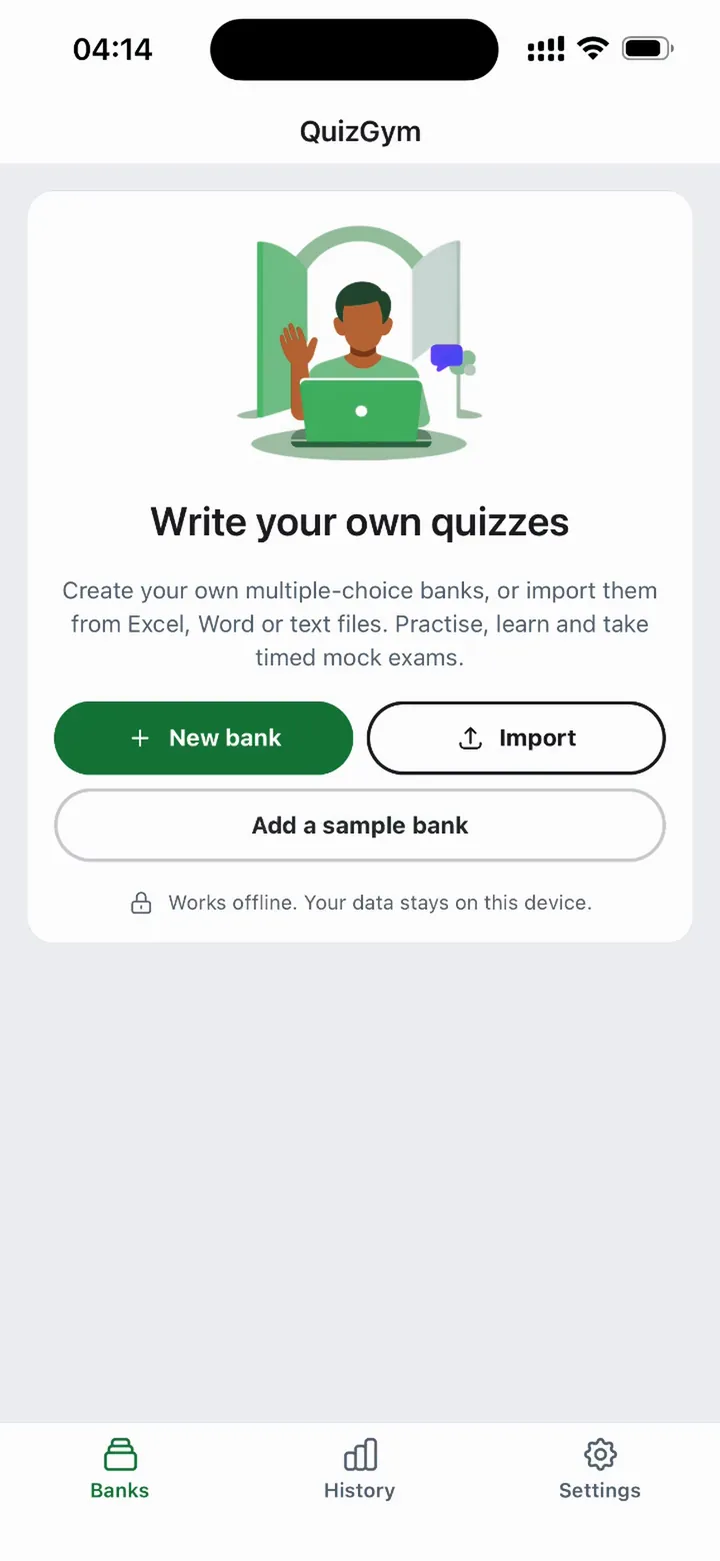
- Open the app and tap “Add a sample bank” to get a bank right away.
- Or tap “New bank”, give it a name and tap “Create and add questions”.
- Each bank has its own pass mark and mock exam time, under “Edit name and pass mark”.
02Write questions
- In a bank, tap “Add question”.
- Type the question and the options. Tap a letter to mark the correct answer; mark several for a multiple-answer question.
- Add an explanation if you like: it shows after answering.
- Tap “Save and add another” to keep going.
Tips
- A multiple-answer question only counts as correct when every correct option is picked.

03Import from a file or link
- Tap “Import” on the home screen, or “Import more questions” in a bank.
- Pick a file on the device, iCloud or Google Drive, or tap “Enter link” and paste a file link.
- Check how many questions were read and which were skipped, then tap “Import”.
Tips
- Excel and CSV: one question per row, with columns question, A, B, C, D, answer, explanation.
- Word and text: the question, lines A. B. C., then an “ANSWER: B” line. A * before the correct option works too.
- Google Sheets links download as Excel. The file must be shared with anyone who has the link.
In the app, “File formats” has Excel, CSV and text templates to start from.

04Train
- Practice: pick an answer, then tap “Show answer”. Not graded.
- Learn: rounds of 10. Two correct rounds in a row and a question is learned; learned questions do not come back.
- Quiz: choose how many questions and the order, with an optional timer. Review mistakes puts recent misses first.
- Mock exam: random questions, a timer, and pass or fail against the bank's pass mark.
Tips
- Turn on “Shuffle answers” to learn the answer, not its position.

05Export and share
- In a bank, tap “Export to a file”.
- Choose a format: encrypted file, Excel, CSV, text or JSON.
- For an encrypted file: tap “Generate”, copy the key, and turn on “Study only” if receivers should not edit it.
- Tap “Export and share”, then send it or save it to Files.
Send the key separately from the file. Without the key nobody can open it, not even you.
06Translate questions
- Pick the app language in the Settings tab.
- While studying, tap “Translate” under a question. Tap again for the original.
- The first time you translate into a language, iPhone may ask to download it.
Tips
- Automatic translation can miss technical terms, so check the original when it matters.
07Back up your data
- Settings tab > “Back up all banks”, then choose JSON or an encrypted file.
- On a new phone, tap “Restore a backup” and open that file.
Your data lives only on the device and is removed with the app, so back up regularly.